Message Center
Introducing the all-new Message Center! Whether you’re on desktop or mobile, our Message Center ensures a seamless experience. Connect with your favorite models today!
Table of Contents
- Archived Messages
- Sending Messages to Models
- Reading and Responding to messages
- Purchasing Media Attachments
- Deleting Conversations
- Message Center Guidelines
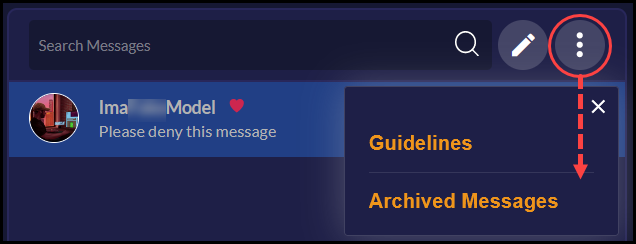
Messages from the previous Message Center are not visible in the latest version of Message Center. To view messages that were created in the previous Message Center, click on the three dots in the top left pane and select “Archived Messages”.
You can send a private message to your favorite models using tokens by following the instructions below. Please note that models may set a specific token price for sending messages.
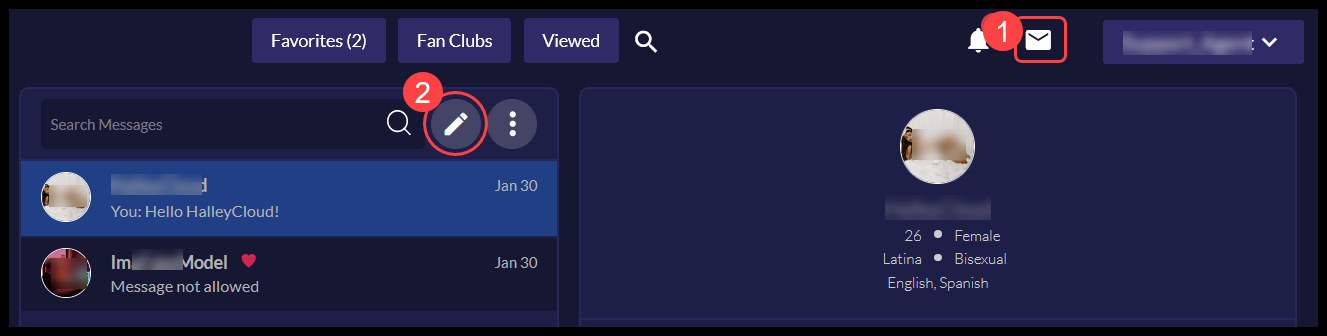
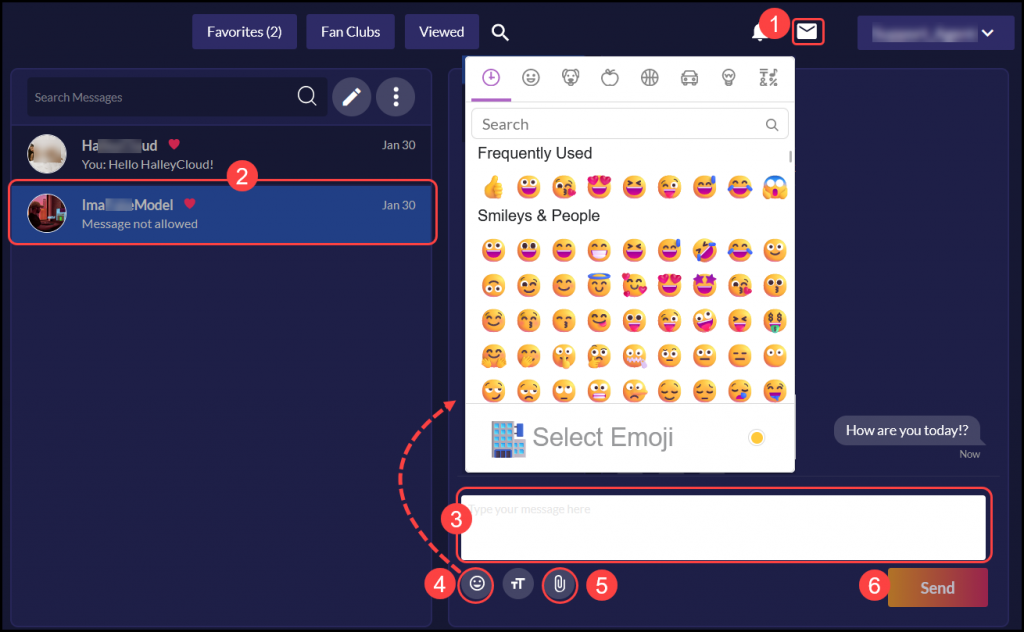
- Click on the “Message Center” icon to access it.
- Click on the “Start Conversation” icon
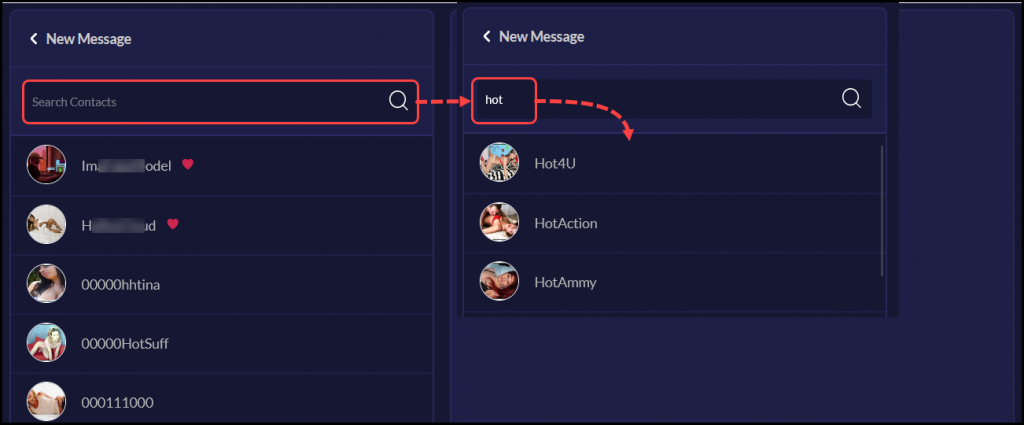
- Click on a model from the list in the left sidebar. If you don’t see the model listed, start typing their stream name in the “Search Contacts” field. If you don’t recall the exact stream name, start by typing the first letter, and a list of models beginning with that letter will appear. You can refine your search by continuing to type.
- Click on the model to whom you wish to send a message in the left sidebar.
- Before typing your message, take note of the token cost required to send it, and then proceed with typing your message.
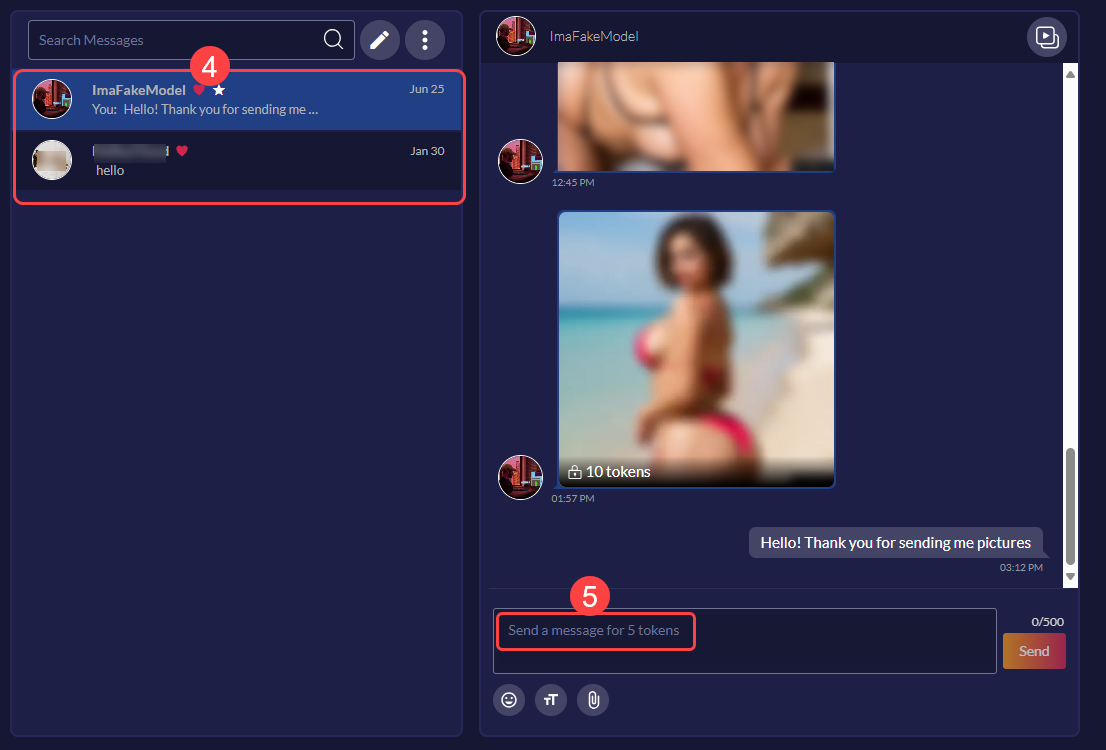
- Enhance your message by adding emoji’s by clicking on the “Emoji” icon
- Attach an image by clicking on the ‘Attachment’ icon, then navigate to the image you want to include. Accepted file formats are jpeg, jpg, and png, with a maximum file size limit of 20MB.
- When you’re ready to send your message click the “Send” button.
- If the model changes their pricing while you were drafting the message, you will be prompted with the new token price. To proceed with the new token price, click “Send.” Otherwise, click “Cancel.
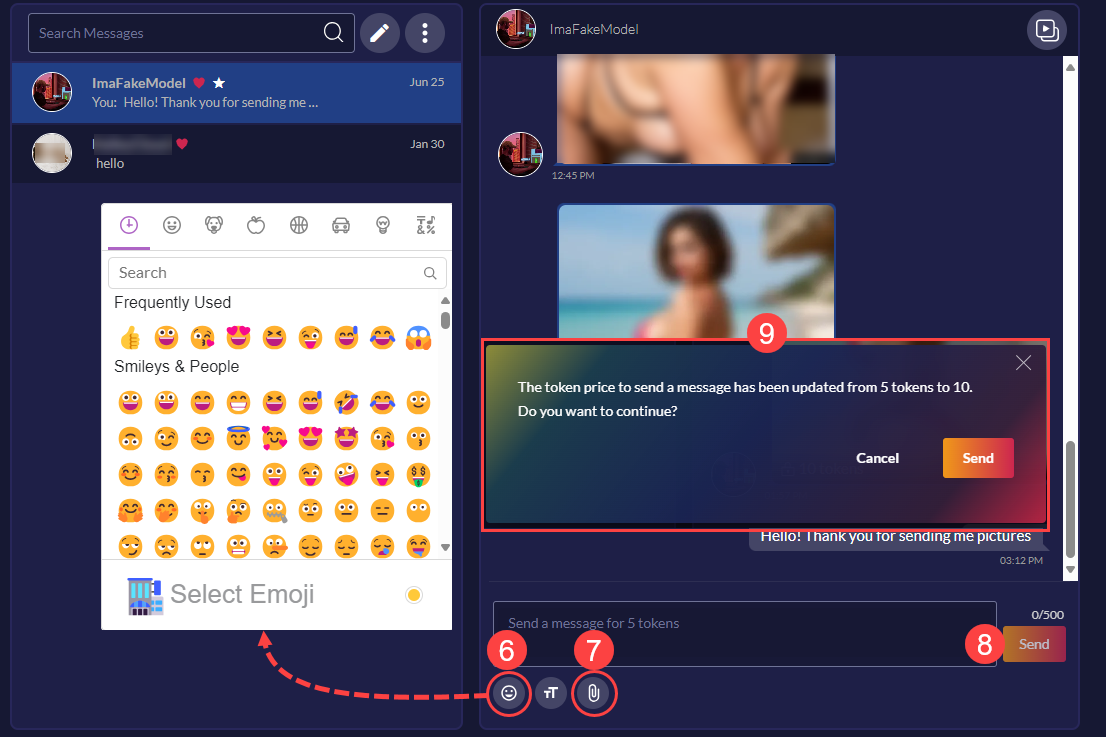
Please note that all messages are subject to review to ensure compliance with our messaging guidelines.
Reading and Responding to messages
- To review and respond to messages, click on the Message Center icon in the top right corner.
- Click on the model of the desired message in the left pane.
- Respond by typing a message in the provided field.
- Enhance your message by adding emoji’s by clicking on the “Emoji” icon
- Attach an image by clicking on the ‘Attachment’ icon, then navigate to the image you want to include. Accepted file formats are jpeg, jpg, and png, with a maximum file size limit of 20MB.
- Click the Send button to send your message.
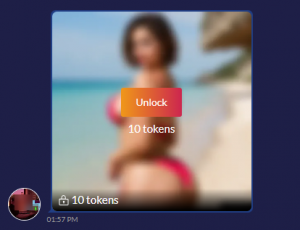
Models can attach images to messages, which can be viewed for a set token price. To unlock an image, click on it and then click the “Unlock” button. The token amount will be deducted from your balance, and you will be able to view the image.
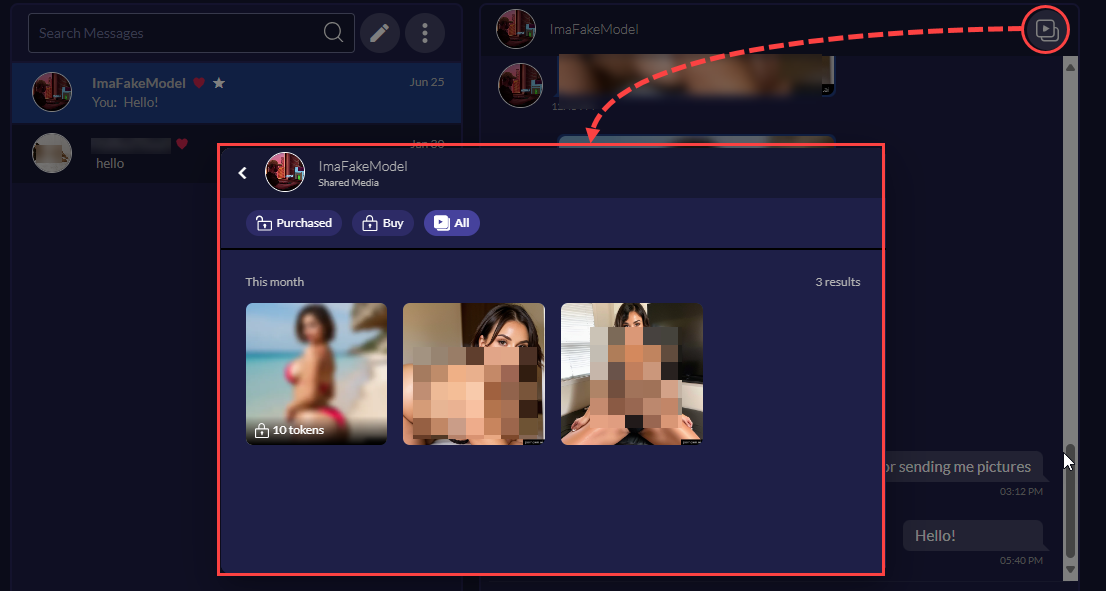
You can view all the media that a model has sent by clicking on the “Shared Media” icon in the upper right corner of the message. To filter the view, click on the “Purchased,” “Buy,” or “All” buttons at the top of the Shared Media section. You can also unlock images from the Shared Media section by clicking on the image then clicking on the ‘Unlock” button.
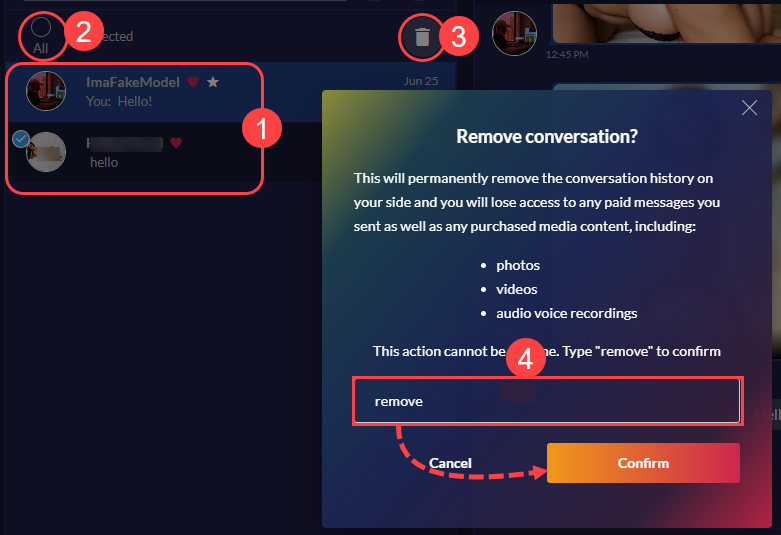
- To delete a conversation, click the avatar to the left of the models stream name. A checkmark appears to indicate the selection. Multiple conversations can be selected and deleted simultaneously.
- For deleting all messages, use the “All” radio button.
- Click the trash can icon to delete the selected conversation(s).
- An overlay is displayed informing you that all photos, videos and audio voice recordings will be permanently deleted and cannot be recovered. Confirm the deletion by typing “remove” in the text box then click the “Remove” button. Note: Old messages will not be displayed if you start a new conversation with a model at a later date.
To view the Message Center guidelines click on the three dots in the top left pane and select “Guidelines”
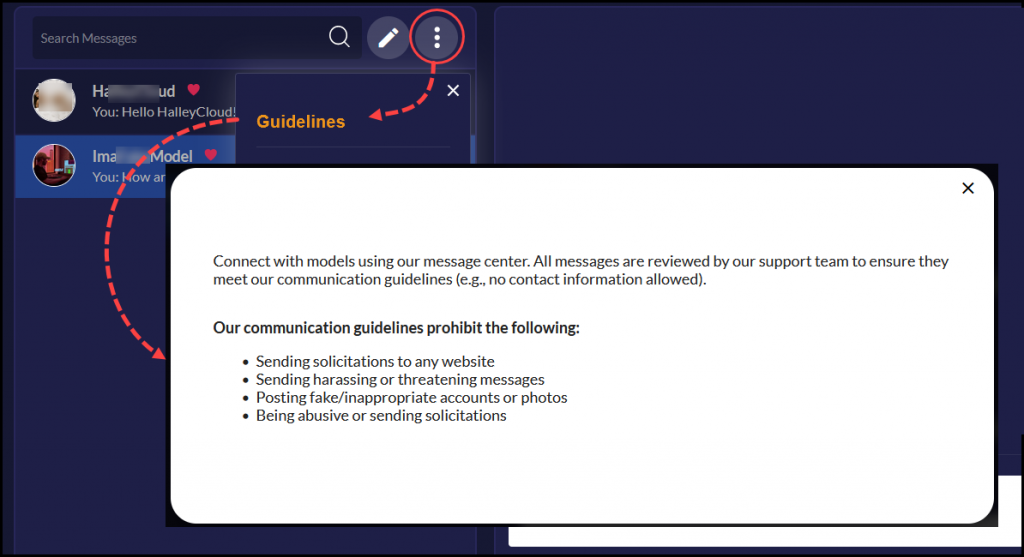
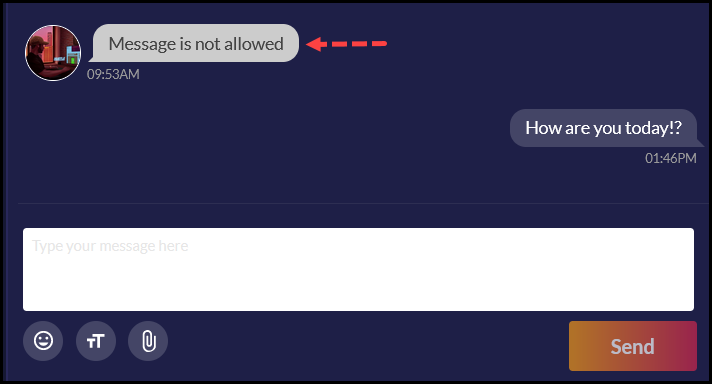
Messages that violate our message center guidelines will be denied and will be replaced with the message “Message is not allowed”.